Your tag, step by step
This guide follows one owner from the moment she scans a brand-new tag to the day-to-day tools that come with it. Part 1 gets your tag working. Part 2 is a tour of everything you can do once it is.
Every screen is the real product, shown with a demonstration owner, Kimiko, and her pets Maple (a Golden Retriever) and Ash (a cat). The people, pets and records are fictional. One account works on ursmartid.com and urmypet.com; the tool screens in Part 2 were taken on urMyPet.
Activate your tag and register your pet
A few minutes, on the phone you scan with. You can stop at any point and pick up where you left off.
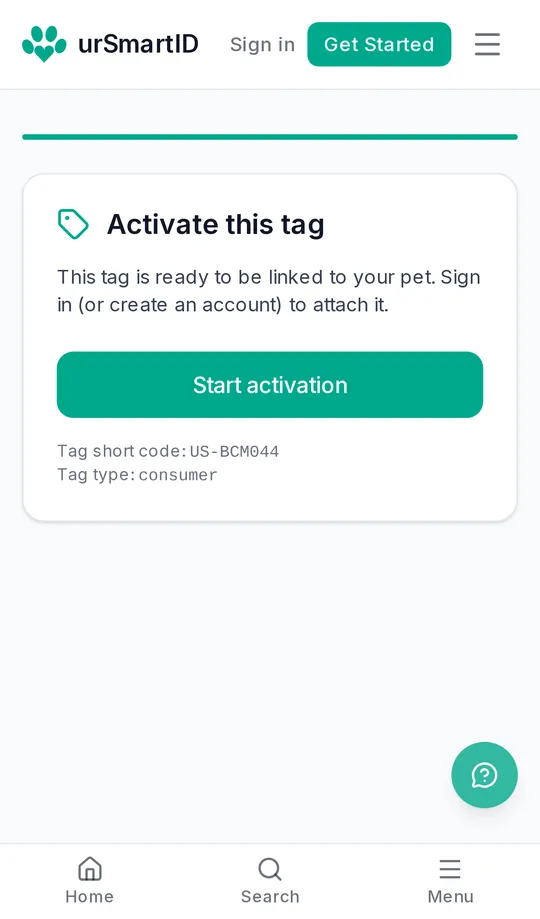
Step 1: Scan or tap your tag
Point your phone’s camera at the QR code on the back of the tag, or hold the tag to the top of an NFC phone. A new tag tells you it’s ready to be linked to your pet. Tap Start activation.
No camera handy? Every tag carries a short code, like US-BCM044. Open ursmartid.com/s/ followed by the code and you reach the same page.
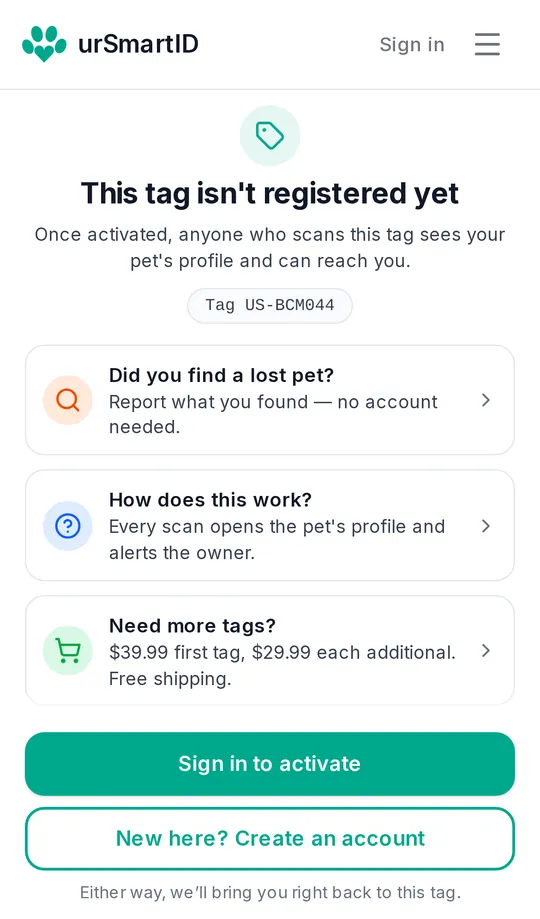
Step 2: Sign in, or create an account
If you already have an account, tap Sign in to activate. If not, tap New here? Create an account. Either way, you come straight back to this tag afterwards.
Found someone else’s pet instead? The first option lets you report it without an account.
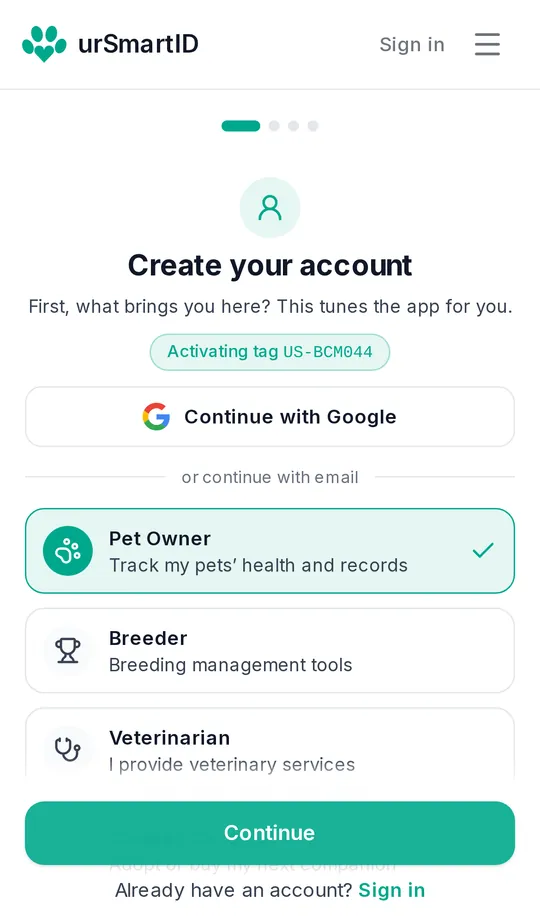
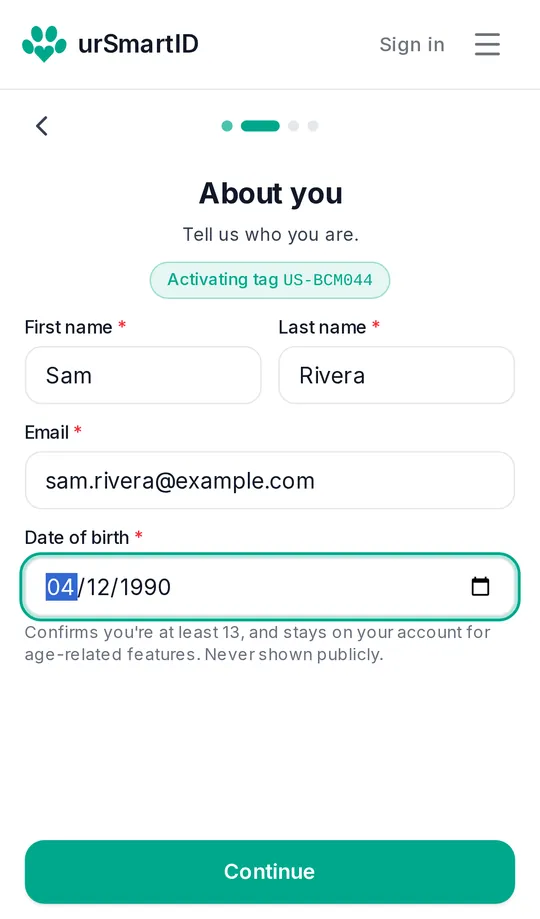
Step 3: Tell us who you are
Choose Pet Owner, then add your name, email and date of birth. Your date of birth confirms you’re 13 or older and is never shown publicly. You can also continue with Google.
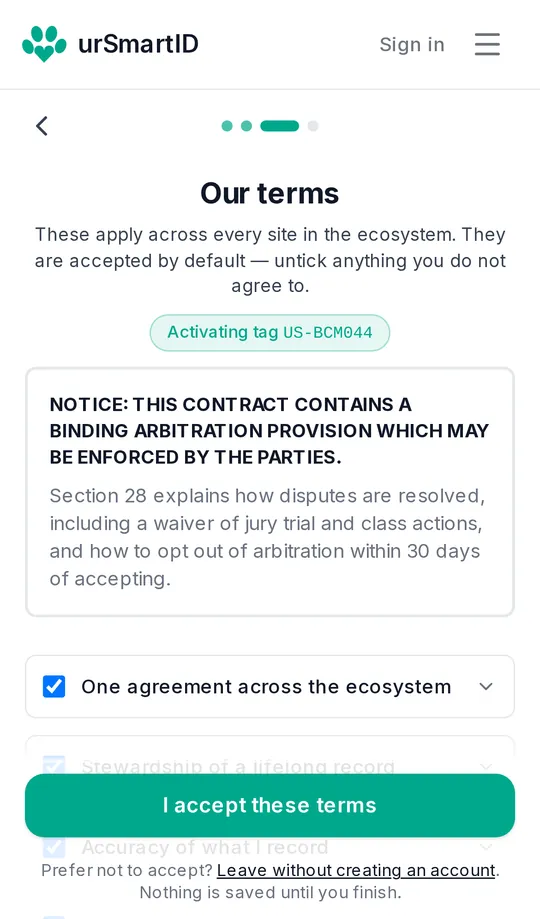
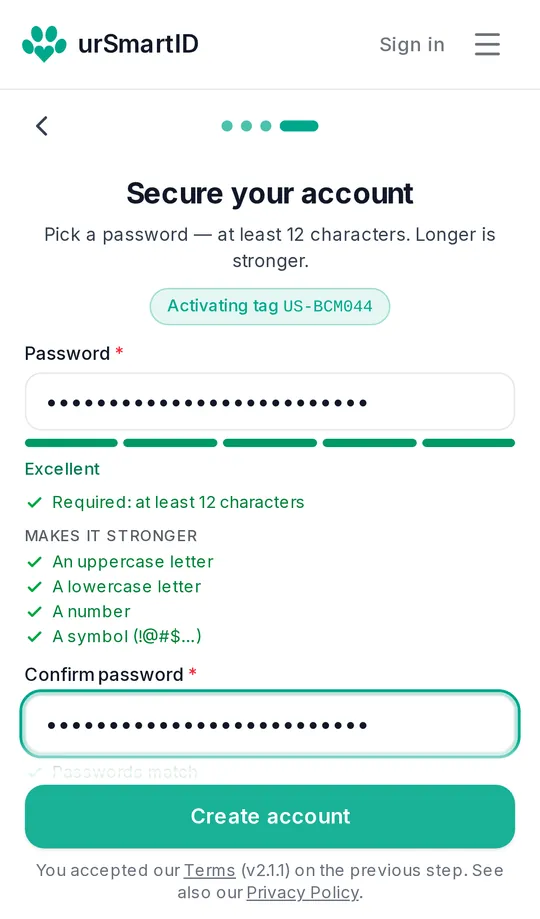
Step 4: Accept the terms and choose a password
Read the short summaries of our terms (tap any line to expand it), then I accept these terms. Choose a password of at least 12 characters and tap Create account.
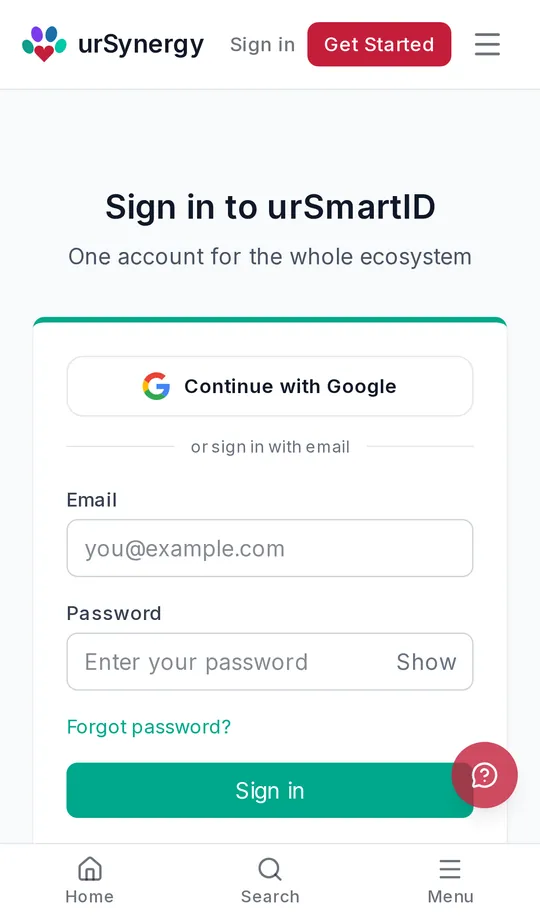
Step 5: Sign in
One account works across every urSynergy site, so sign in with the email and password you just chose. You land back on your tag.
If our terms have changed since you last accepted them, you may be shown them once when you sign in.
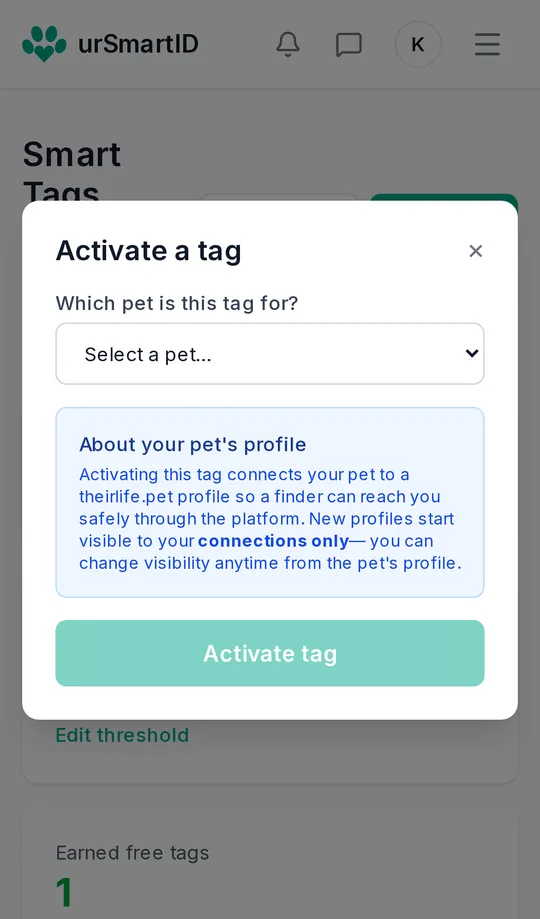
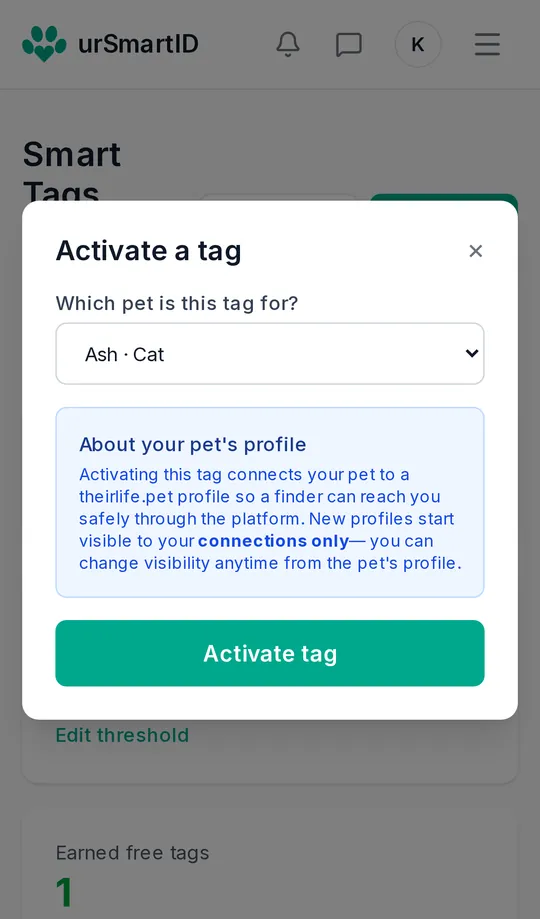
Step 6: Choose the pet this tag is for
Pick one of your pets, or choose Add a new pet to register them right here: their name and what kind of animal they are is all it takes. Then tap Activate tag.
A new pet’s profile starts visible only to your connections. You decide later what anyone who scans the tag can see.
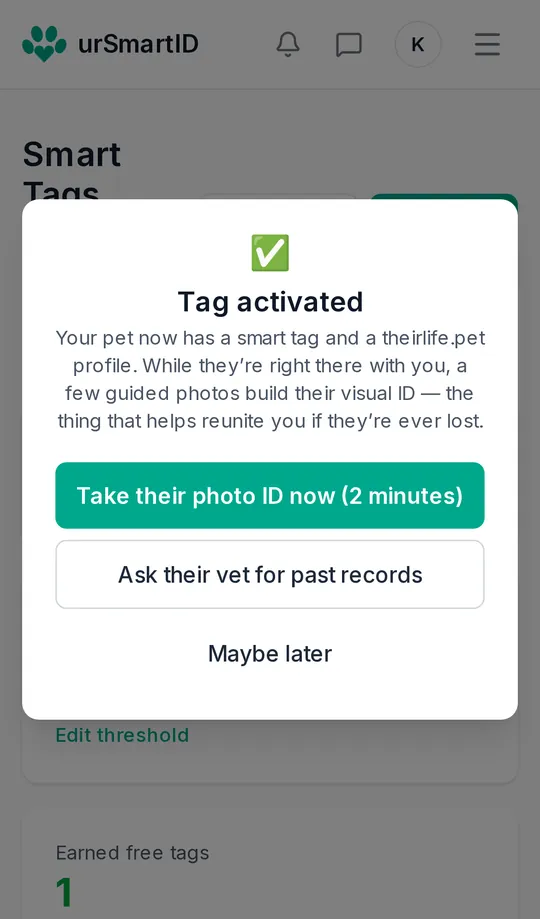
Step 7: Your tag is active
That’s it: the tag now leads to your pet. Two optional next steps are offered straight away, both worth doing while your pet is next to you: Take their photo ID (about two minutes of guided photos that build a visual ID to help reunite you if they’re lost) and Ask their vet for past records.
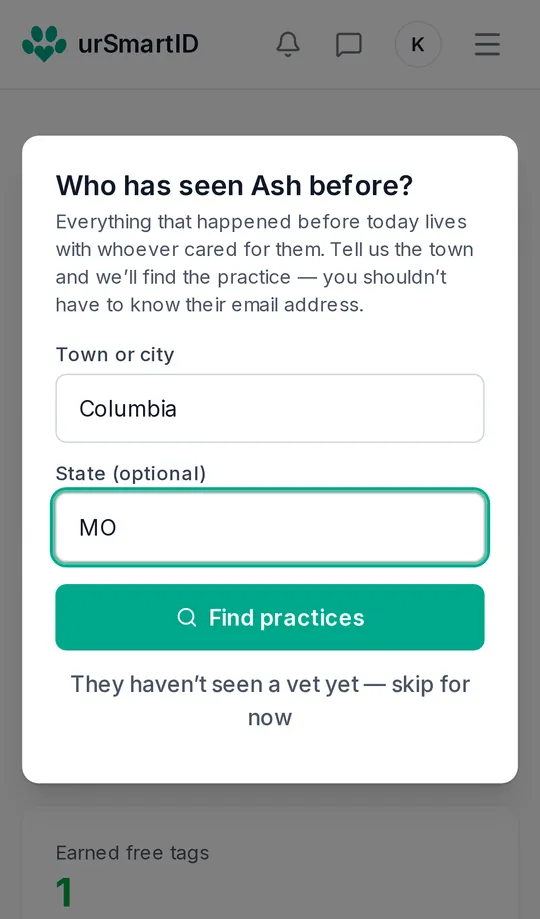
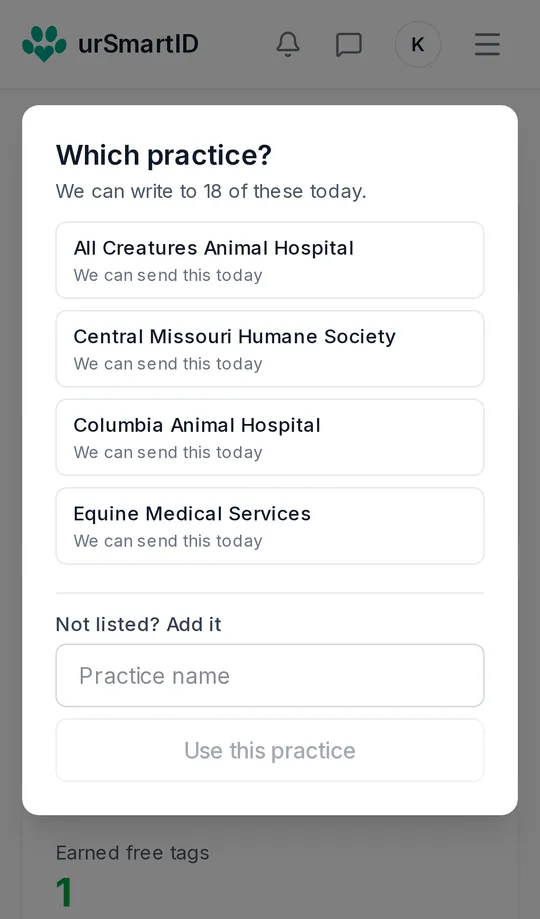
Step 8: Ask their vet for past records
You don’t need your vet’s email address. Type your town, tap Find practices, and pick your practice from the list. If it isn’t there, add it by name.
Step 9: Give your permission
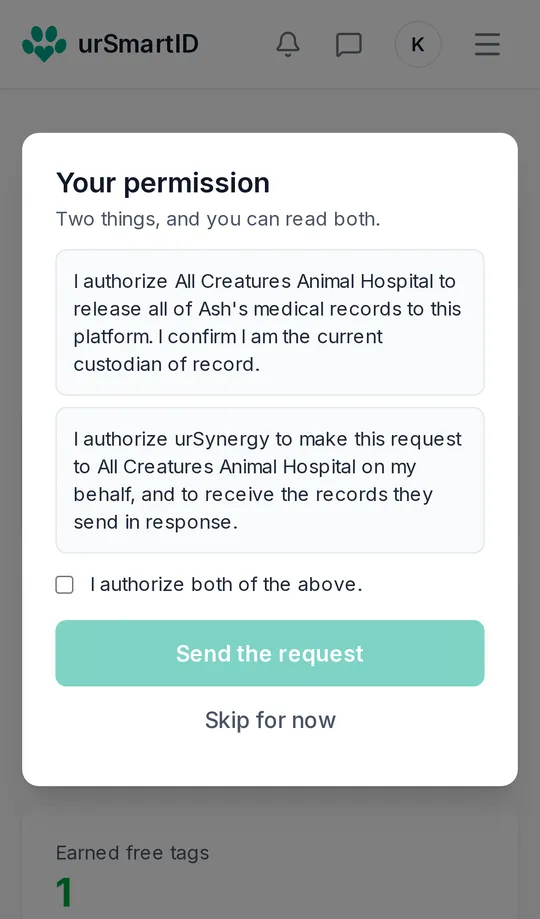
Two short authorizations are shown in full: one lets the practice release your pet’s records, and the other lets us make the request on your behalf. Tick I authorize both of the above and tap Send the request. What the practice sends appears in your pet’s records.
Not now? Skip for now leaves everything else in place, and you can ask later from your pet’s page.
Step 10: See your tags
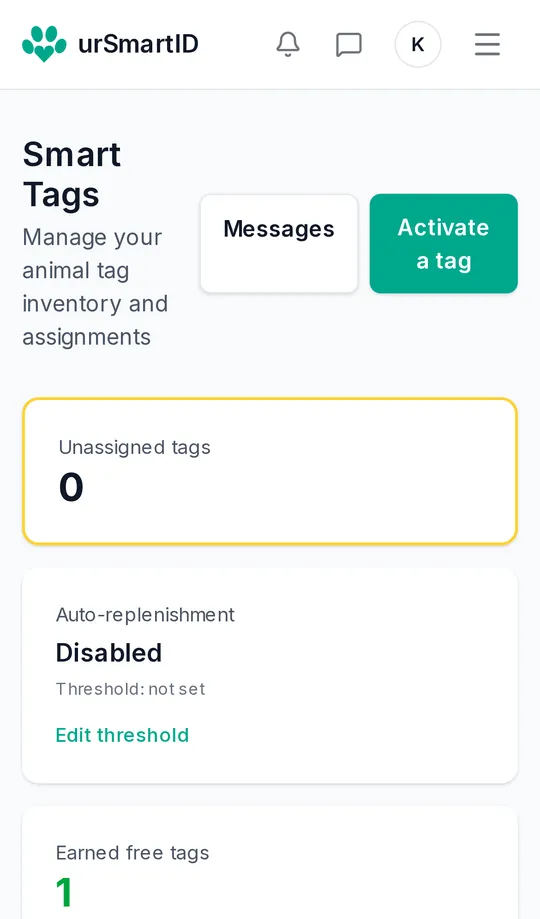
Smart Tags lists every tag and the pet it belongs to. From here you can report a pet lost, order a $5 replacement tag, show the tag’s QR code, choose what a finder sees, and see when it was scanned.
Step 11: What someone sees when they scan
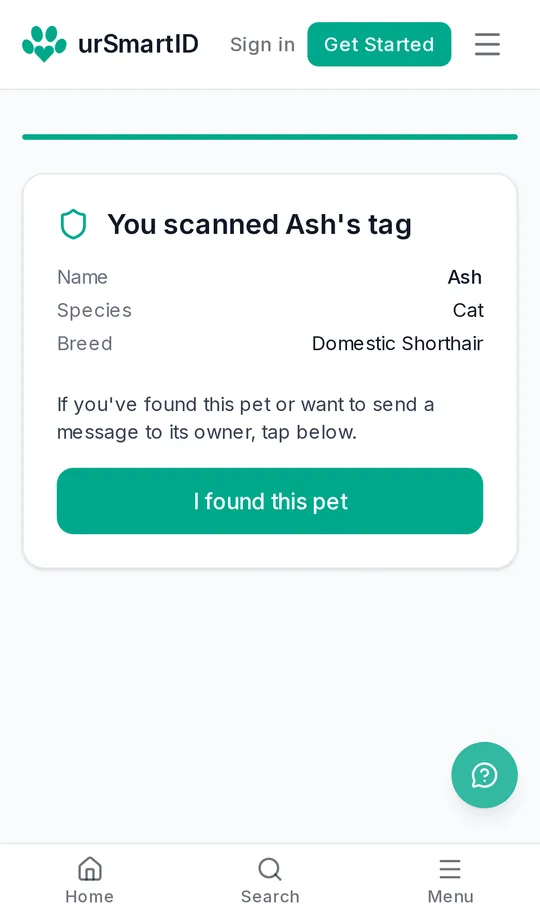
Anyone who scans your pet’s tag sees their name and what kind of animal they are, and can tap I found this pet to reach you. Your phone number and address are not shown to them.
The tools that come with your tag
Everything below comes with the tag, on any phone or computer, with no app to install. Open the menu at the top of the page, or the bar at the bottom on a phone, to reach each one.
Your pets at a glance
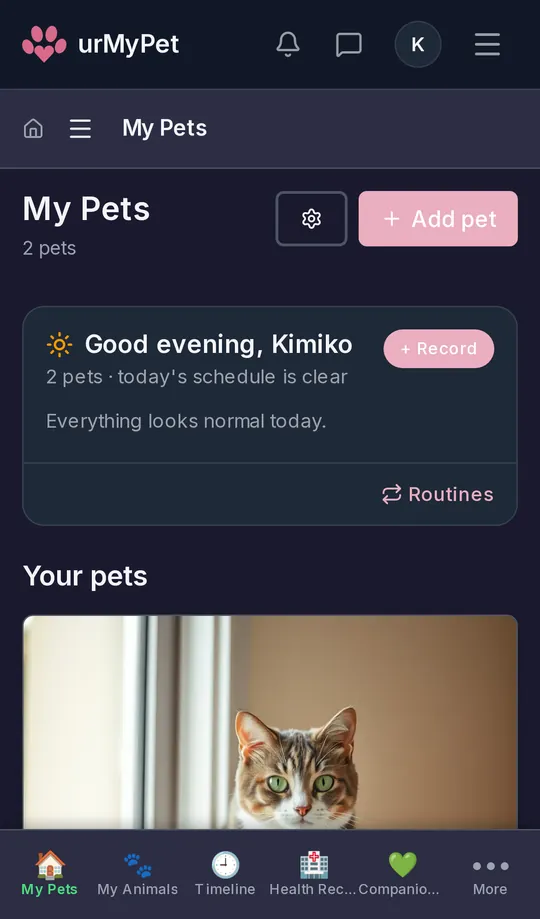
My Pets
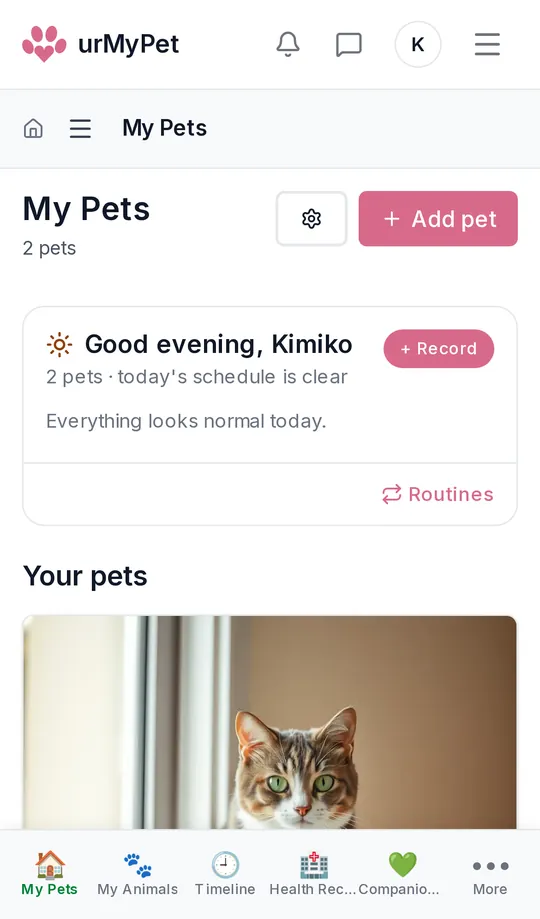
Your home screen: every pet, what needs attention today, and a Record button for anything that just happened.
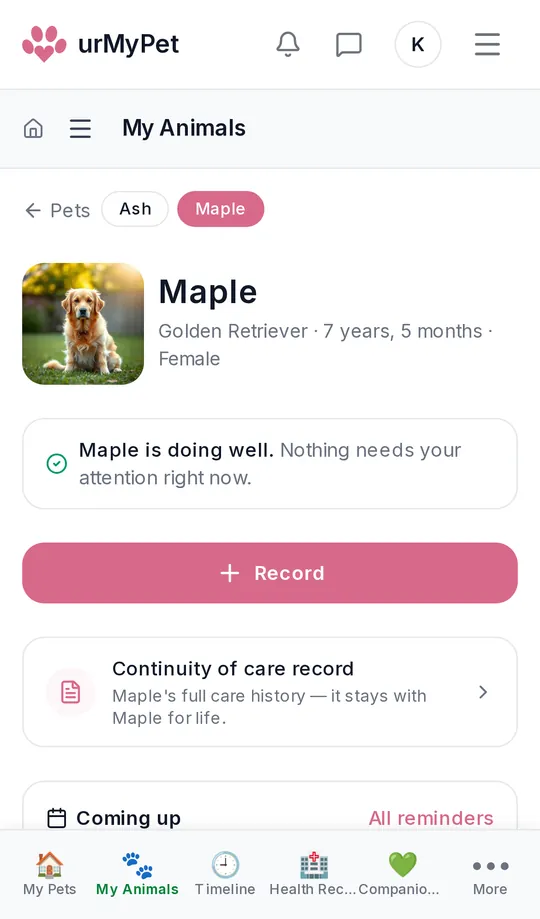
Your pet’s page
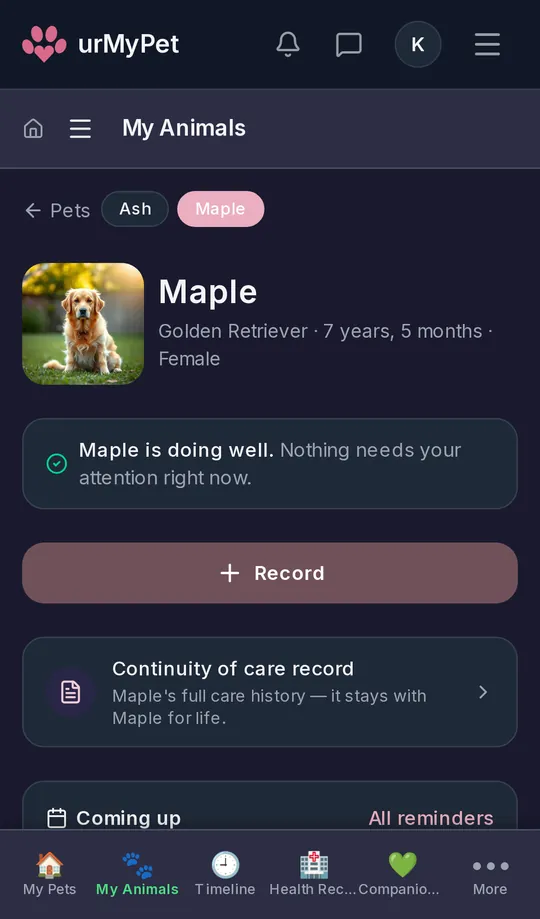
One page per pet: how they’re doing, their continuity-of-care record (their full care history, which stays with them for life), and what’s coming up.
Everything that’s happened, in one place
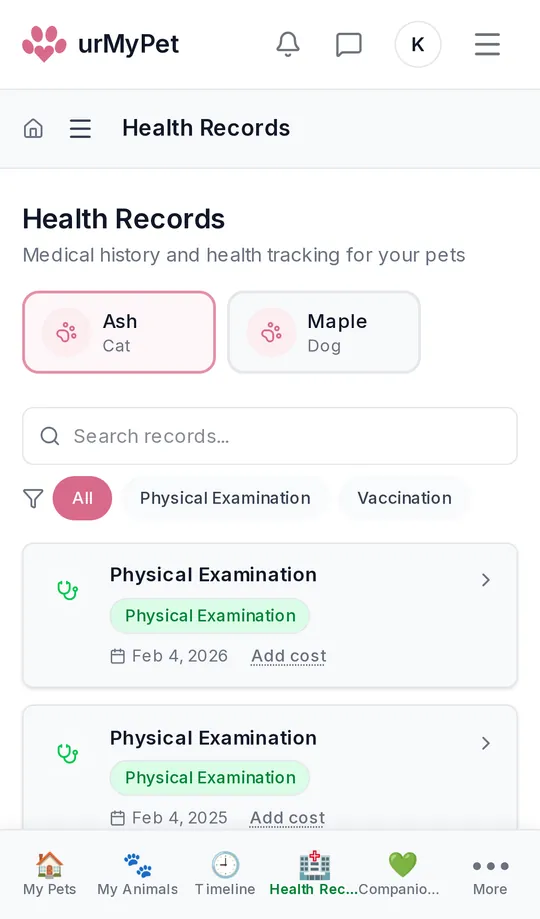
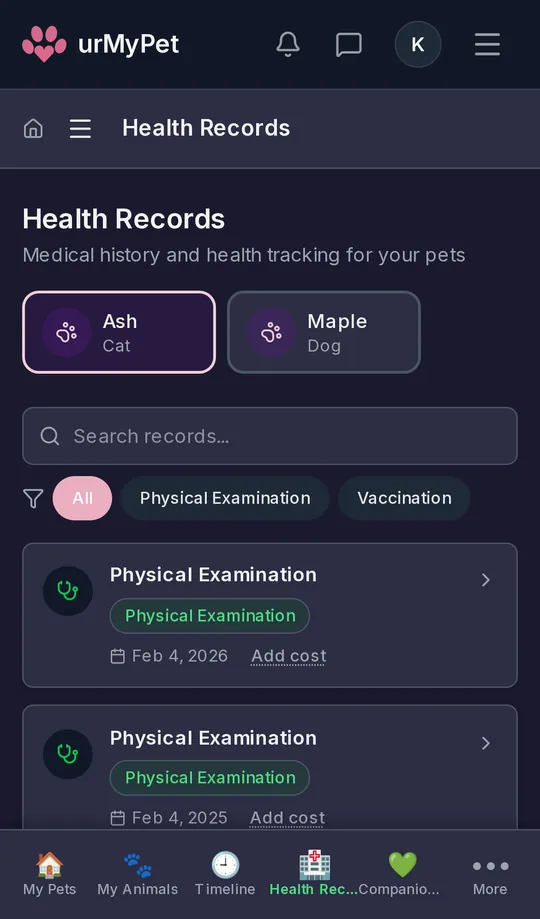
Health records
Exams, vaccinations and results for each pet, whichever clinic recorded them. Filter by type, search, and add what a visit cost.
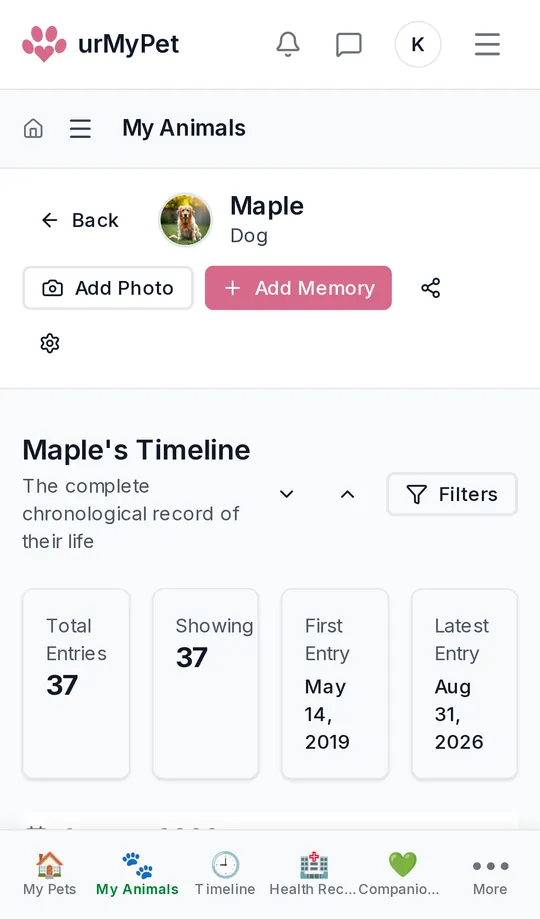
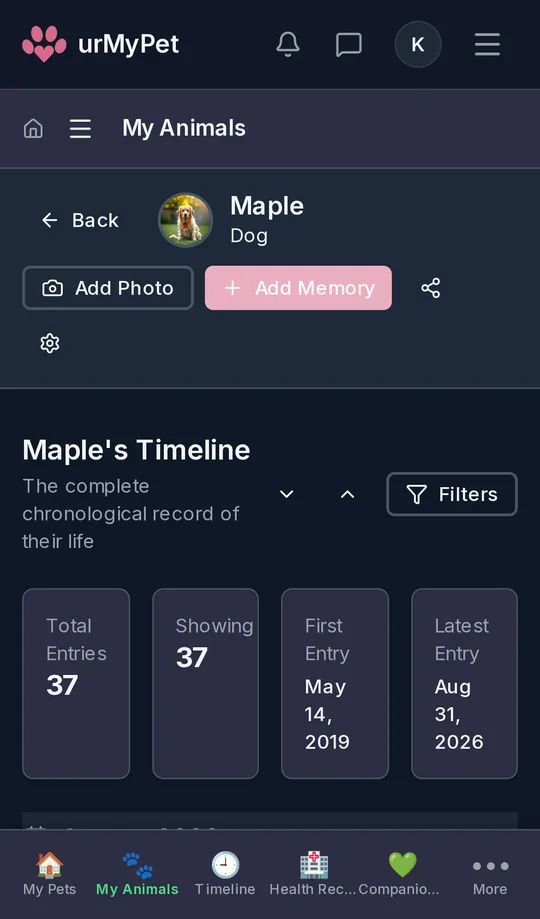
Timeline
Their whole life in order: every visit, test, vaccination and memory. Add a photo or a memory from the top of the page. Timeline in the menu shows all your pets together.
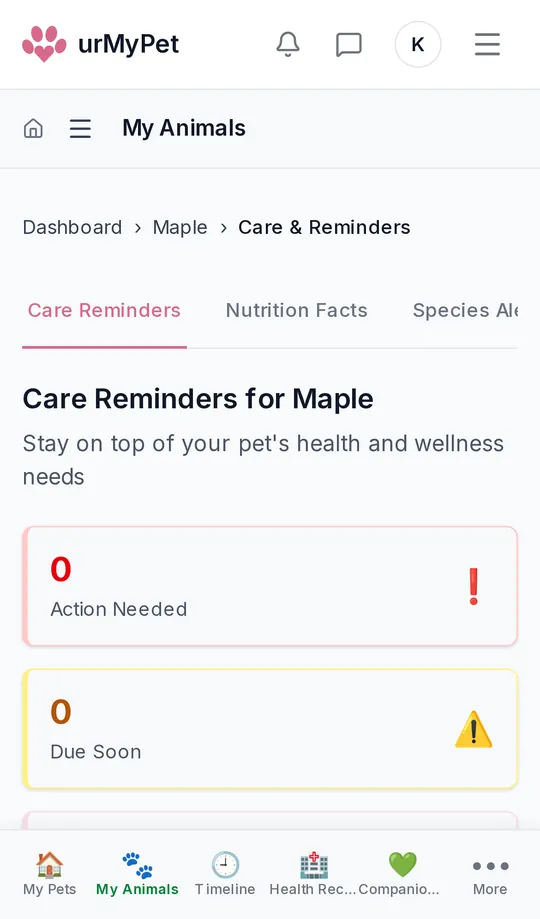
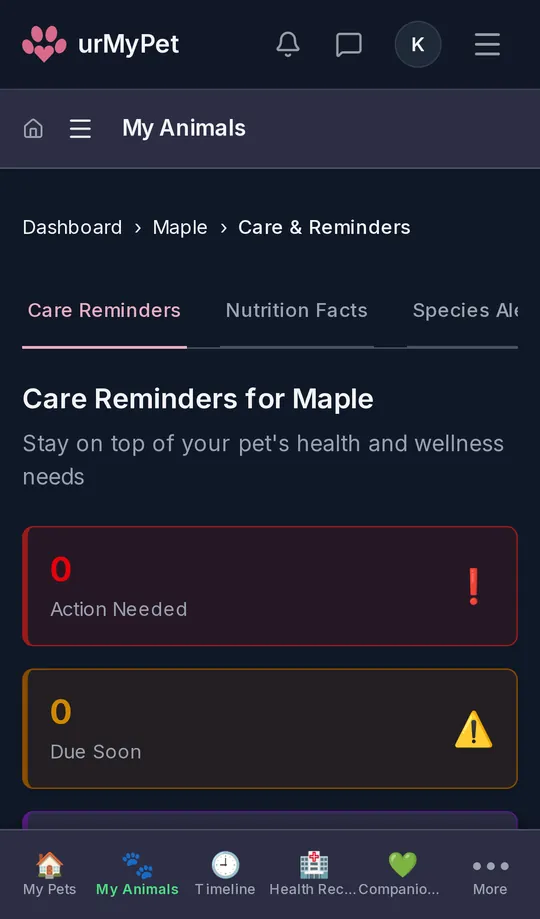
Care & reminders
What’s due and what needs action, plus nutrition facts and alerts for your pet’s species. Choose how you’re reminded under Settings.
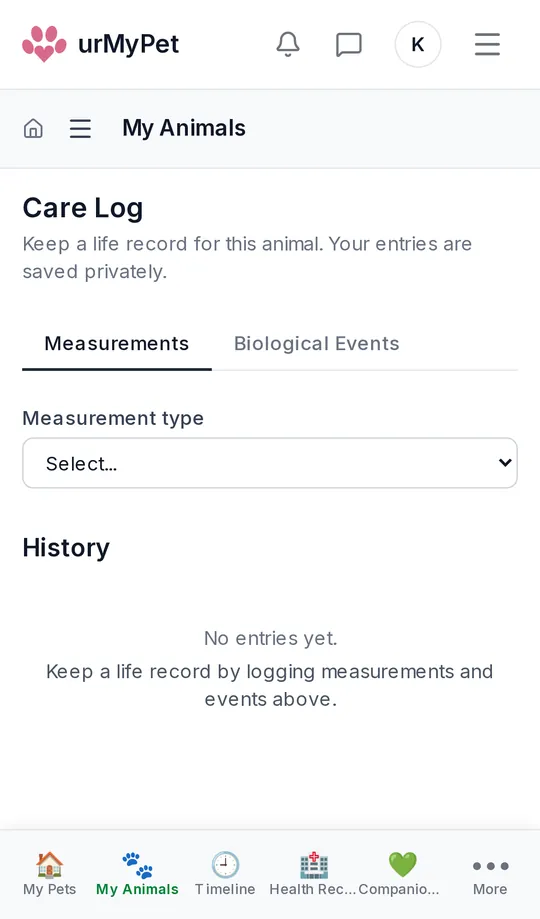
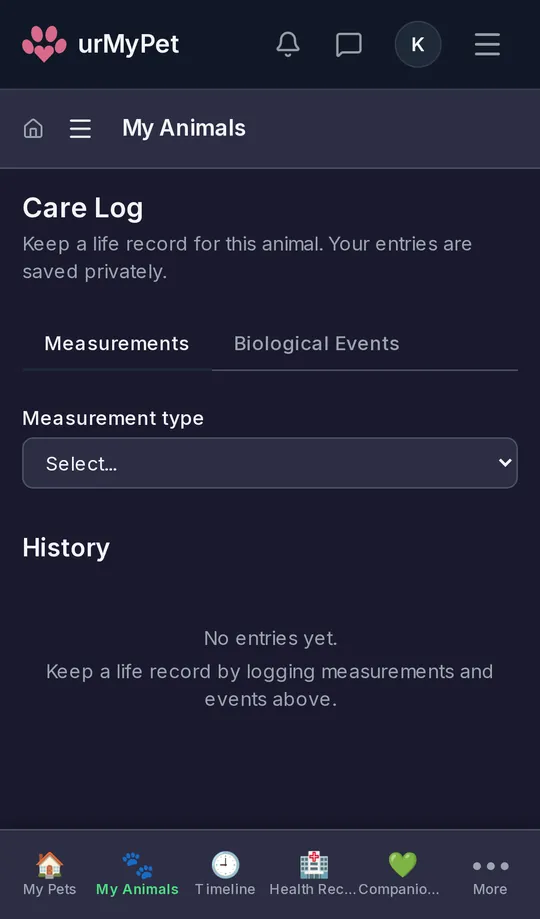
Care log
Keep your own record between visits: weight, body condition and other measurements, and biological events. Your entries are private.
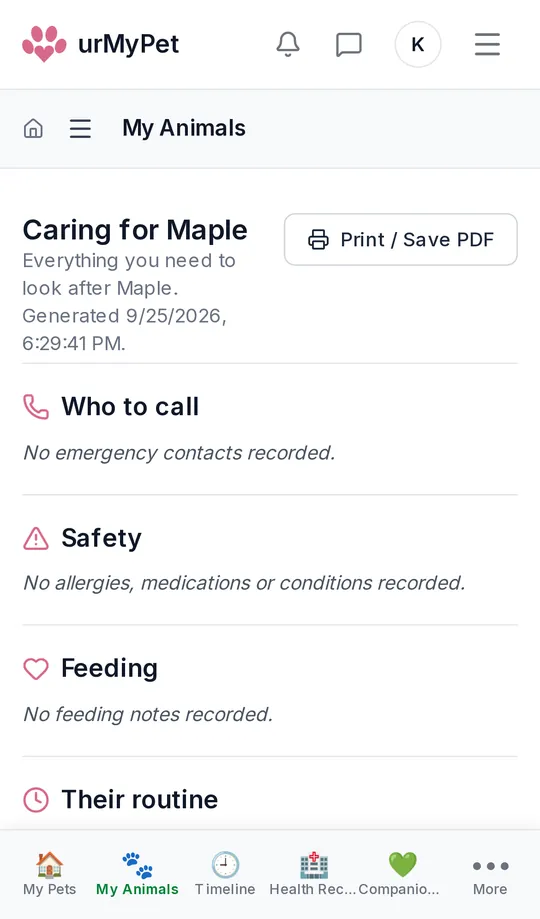
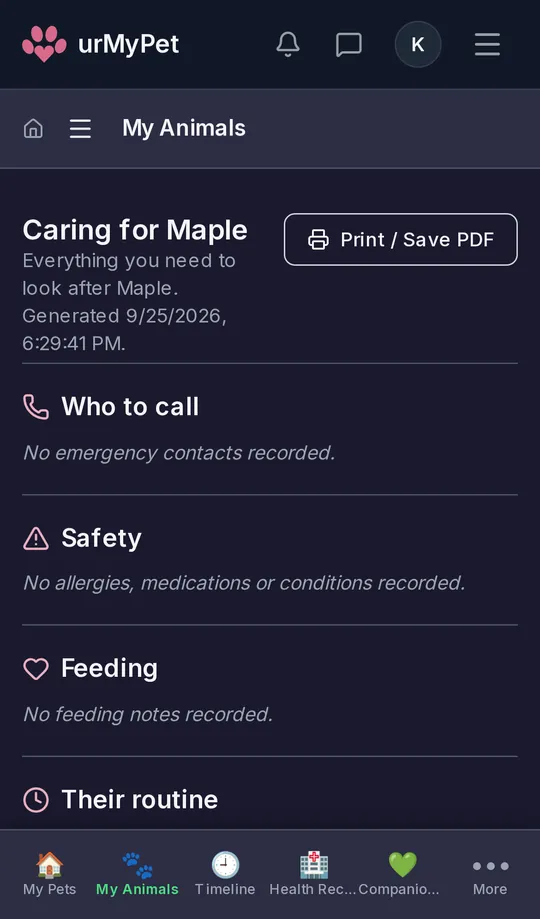
Care sheet
Everything a sitter needs on one page: who to call, safety notes, feeding and routine. Print it or save it as a PDF.
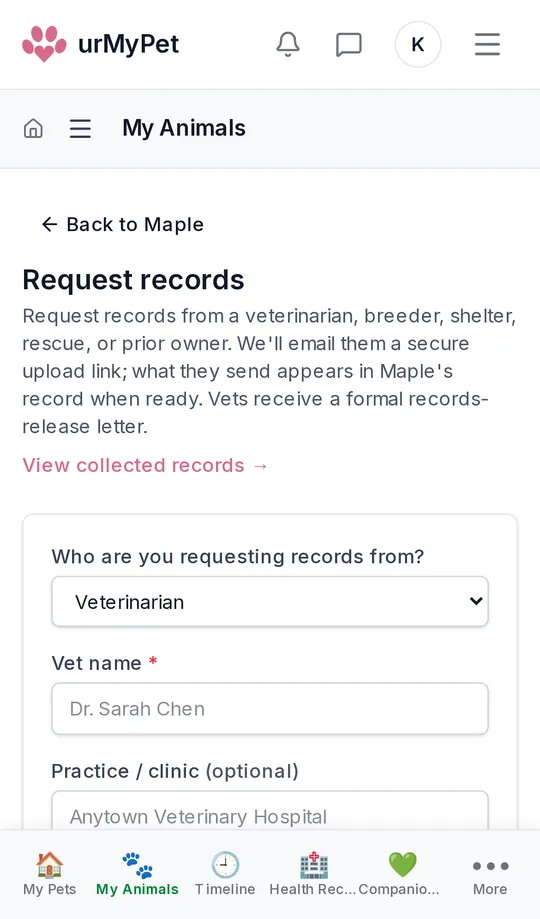
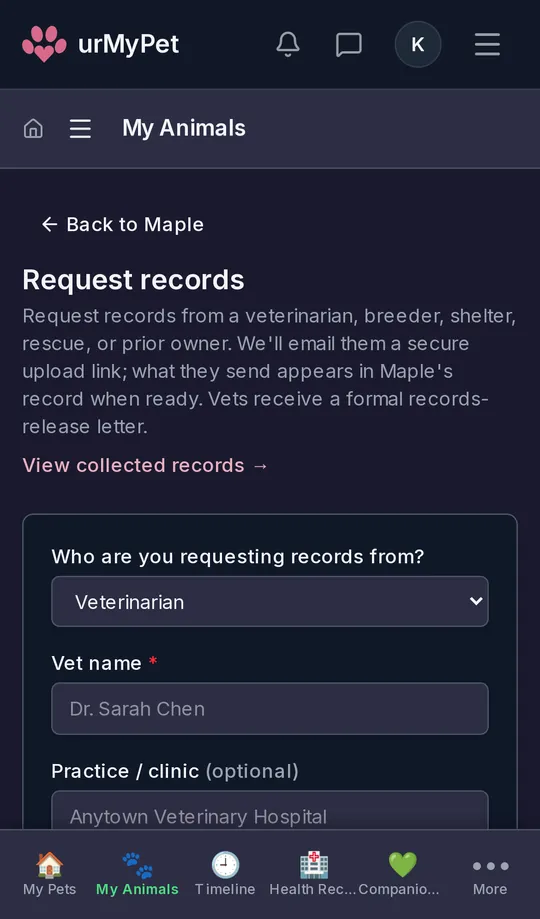
Past records
Ask a vet, breeder, shelter, rescue or previous owner for what they hold. They get a secure upload link, and what they send appears under Records.
An identity that builds over time
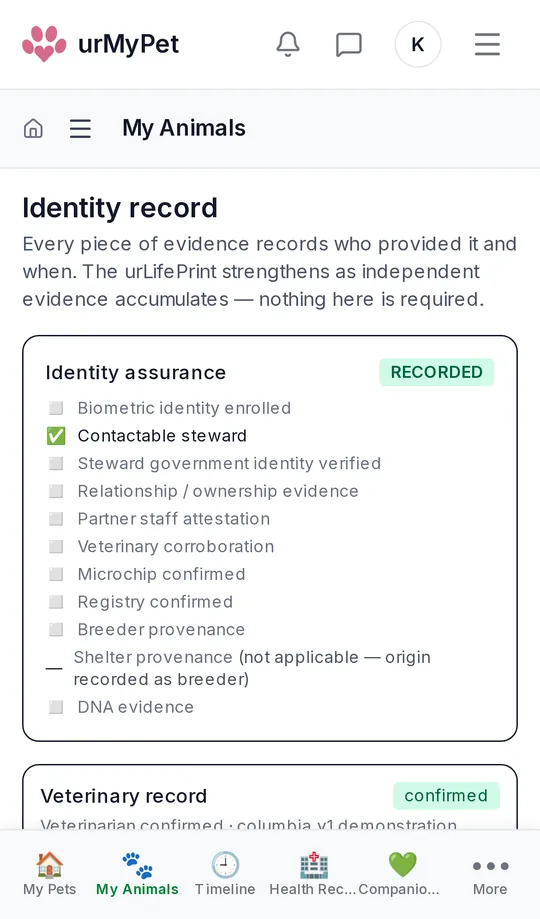
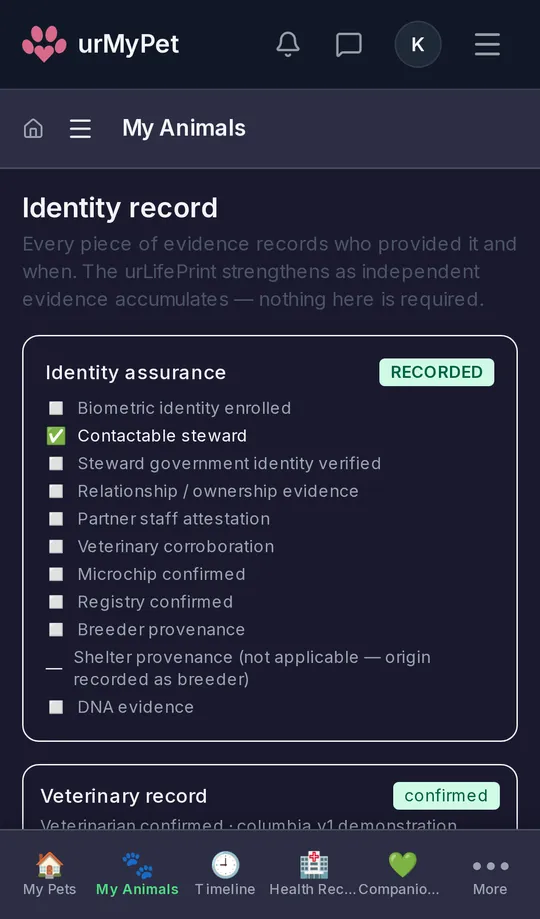
Identity record
Each piece of evidence about who your pet is, and who provided it: microchip, veterinary record, where they came from. It strengthens as evidence adds up; nothing here is required.
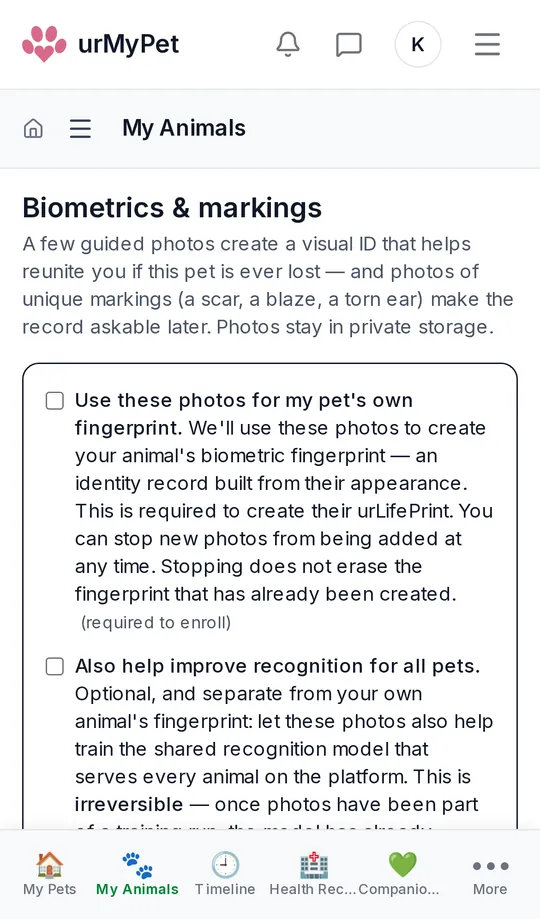
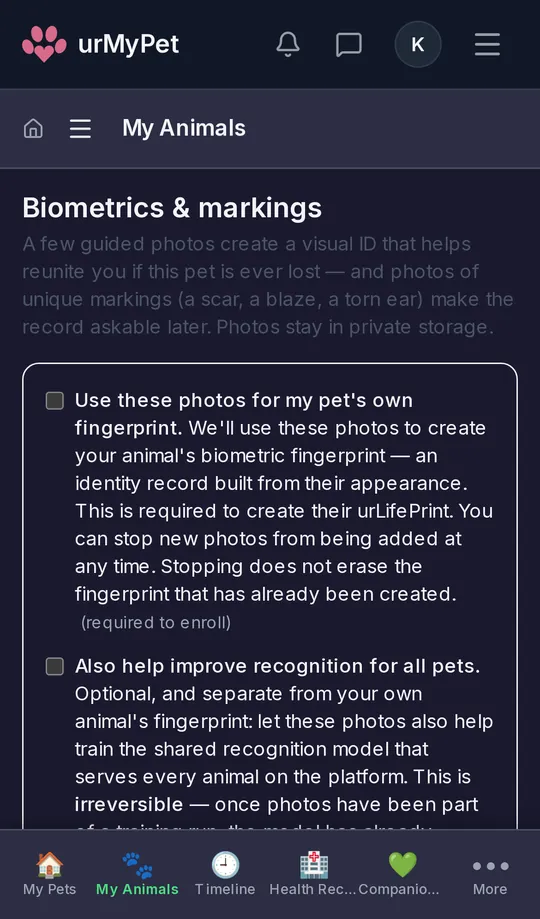
Photo ID
A few guided photos, plus any unique markings, create a visual ID that can help reunite you. You choose whether the photos are used, and they stay in private storage.
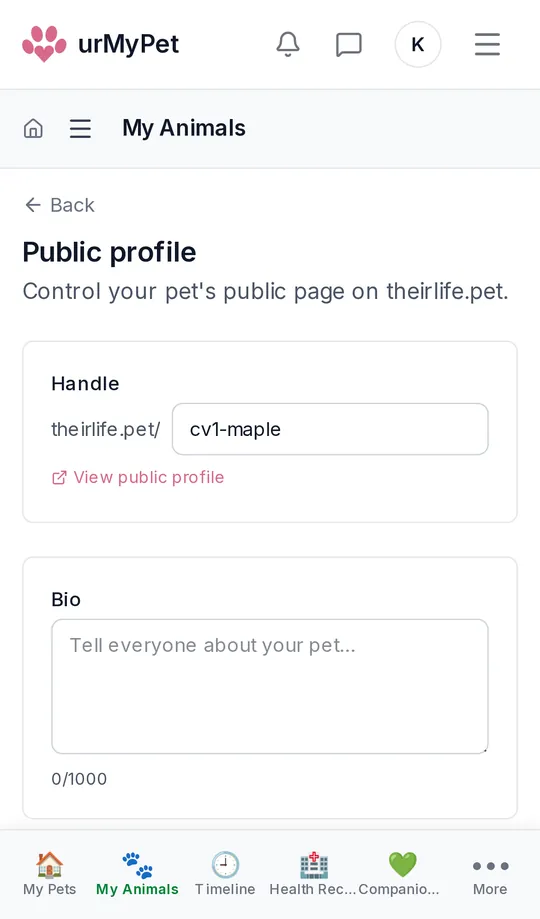
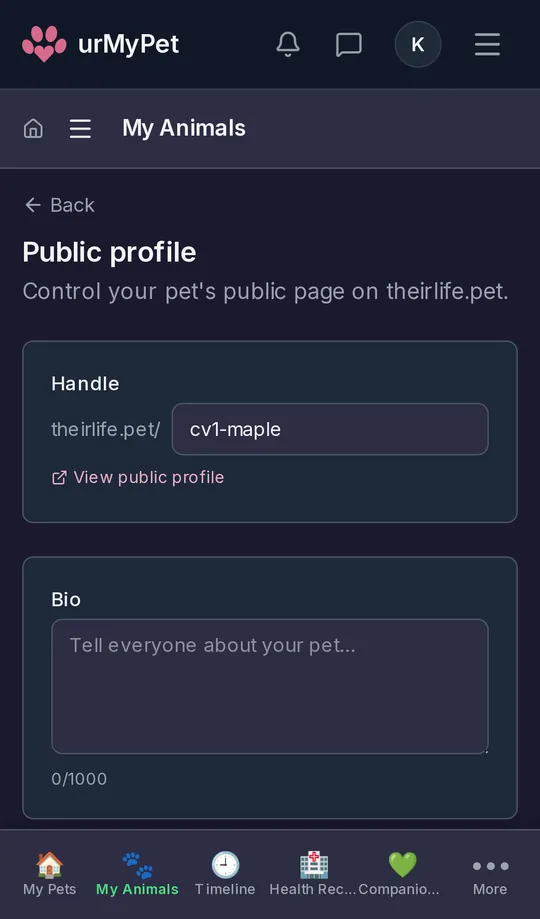
Public profile
Your pet’s own page on urPetCommunity, with a handle, a short bio and a photo. You decide who can see it.
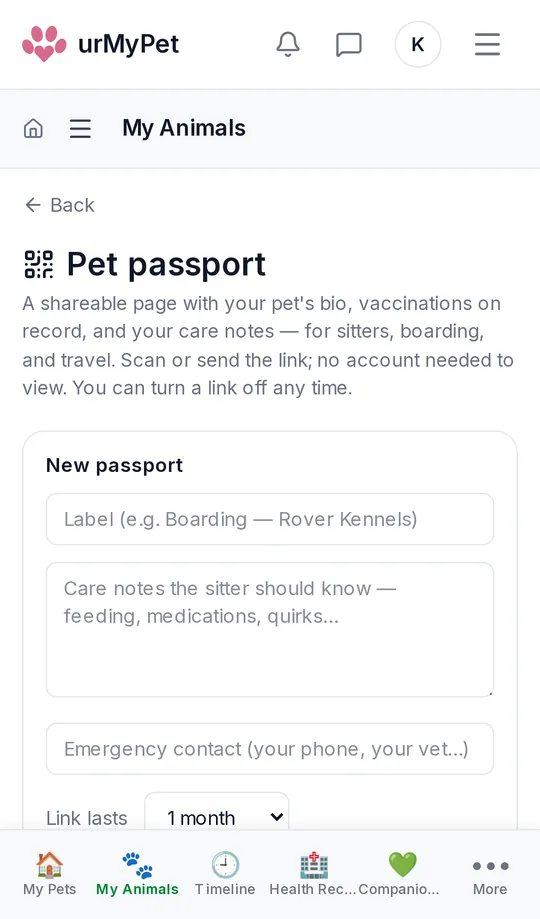
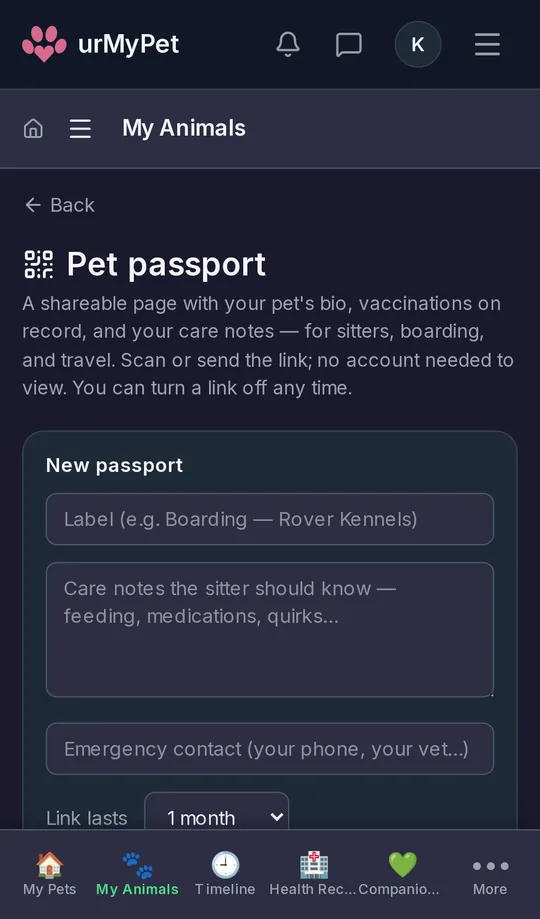
Pet passport
A shareable page with your pet’s bio, vaccinations on record and your care notes, for sitters, boarding and travel. You choose how long the link lasts; they don’t need an account.
Getting them home
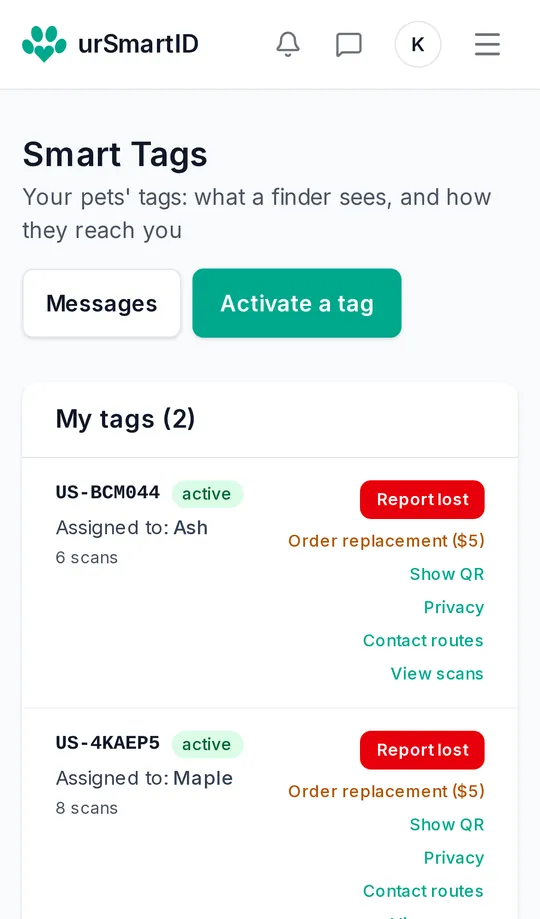
Report lost
One tap on Report lost in Smart Tags puts your pet’s tag into lost mode. Privacy and Contact routes choose what a finder sees and how they can reach you.
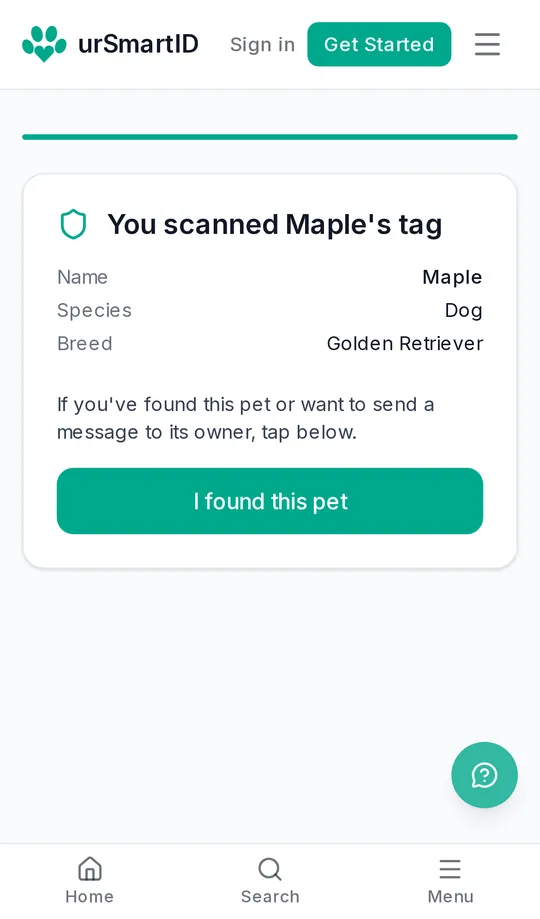
The finder’s page
Whoever finds your pet scans the tag, sees who they are, and taps I found this pet to reach you through the platform.
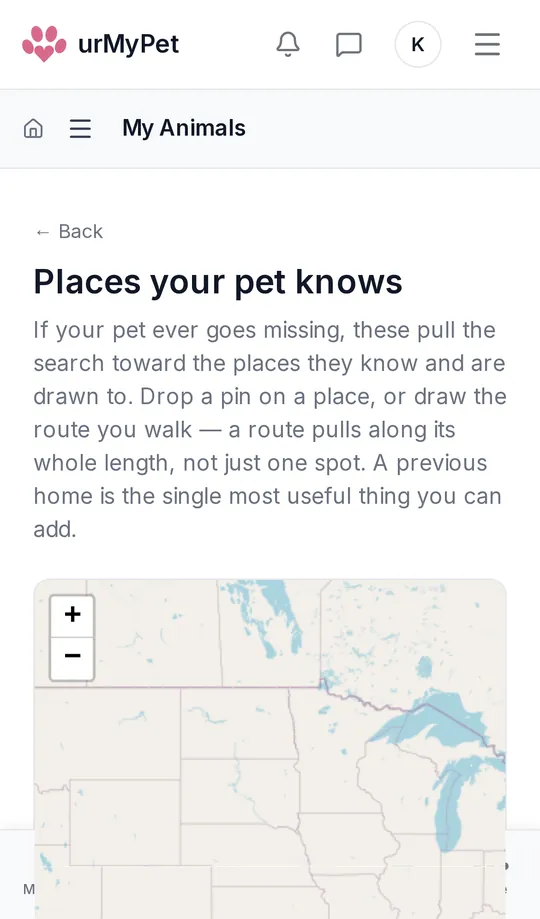
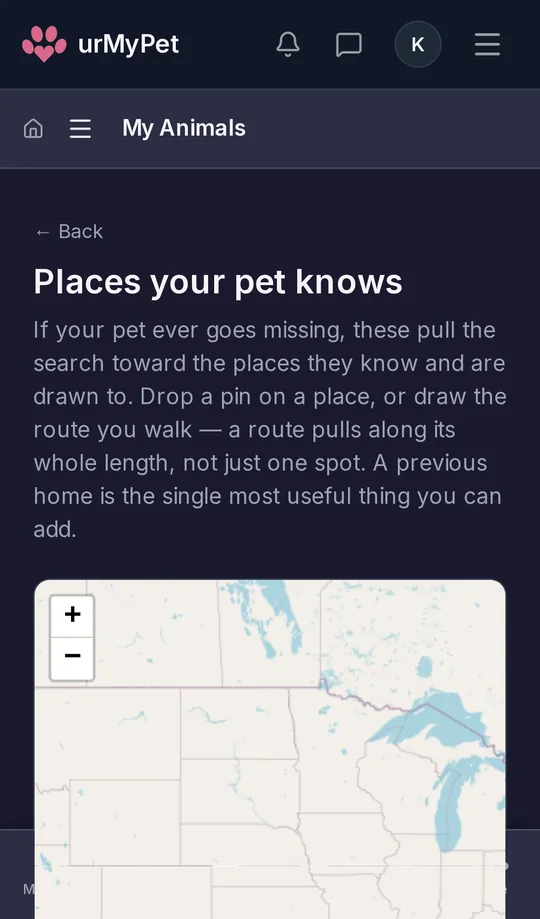
Places your pet knows
Pin the places your pet knows and the routes you walk. If they ever go missing, the search starts where they’re most likely to go. A previous home is the most useful one to add.
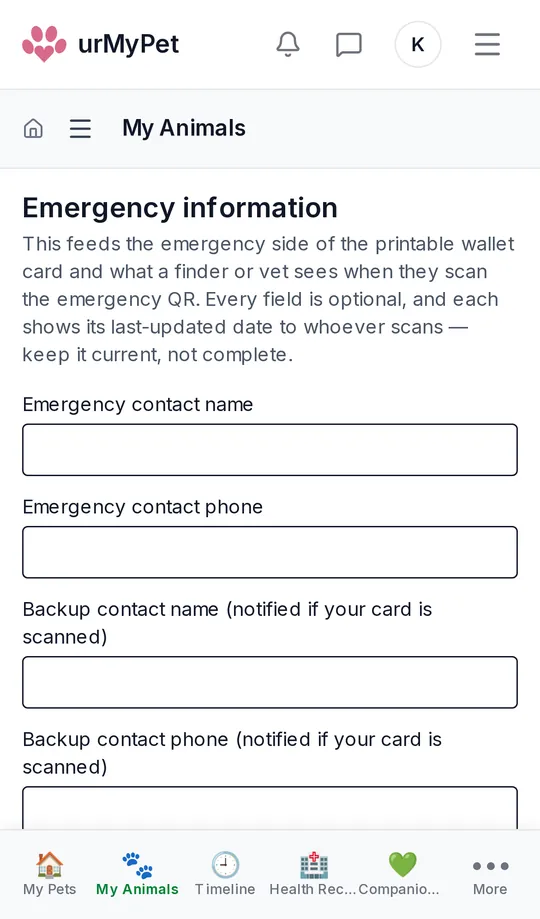
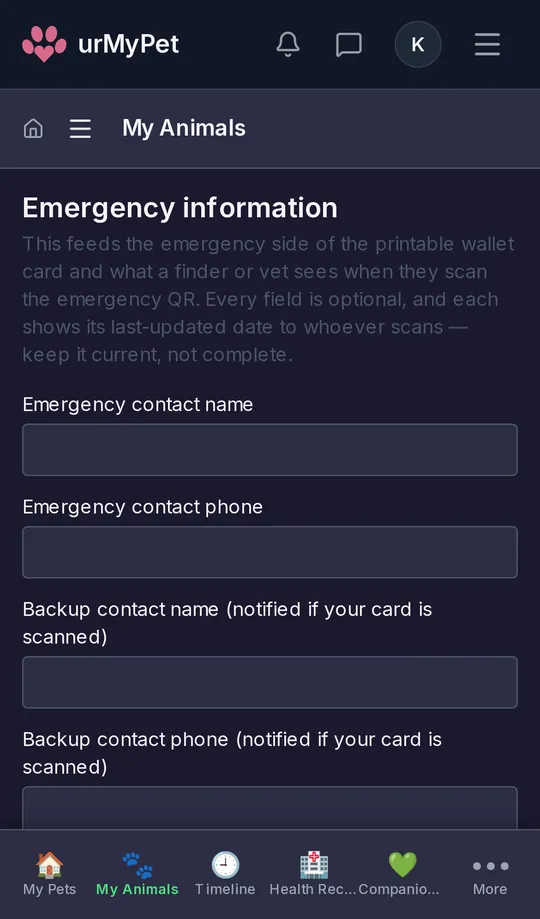
Emergency information
Emergency contacts, your clinic, allergies and reactions. This is what a finder or vet sees on the emergency side of your wallet card and QR, so keep it current.
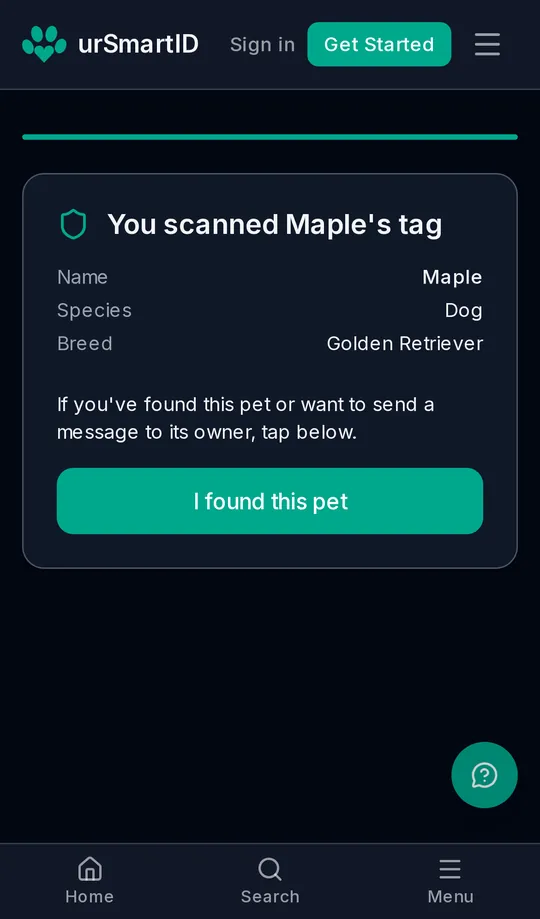
Everything else
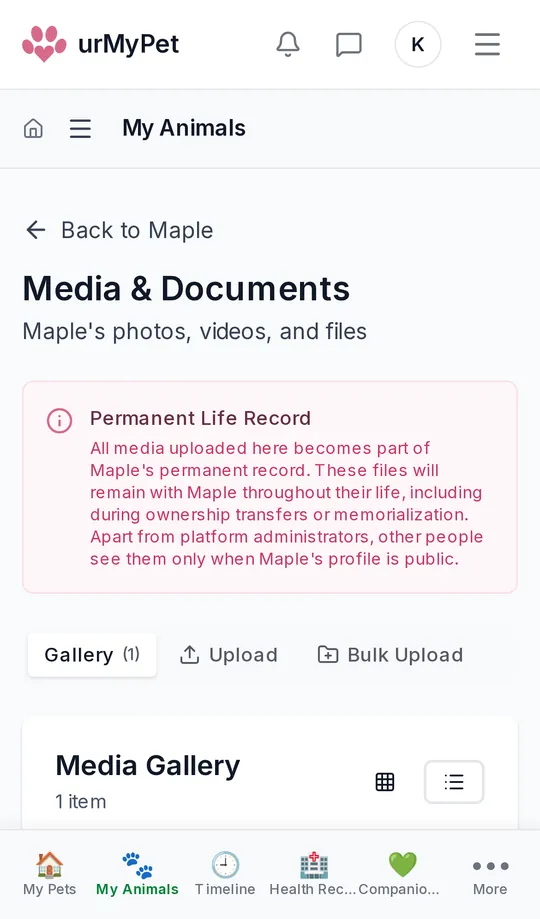
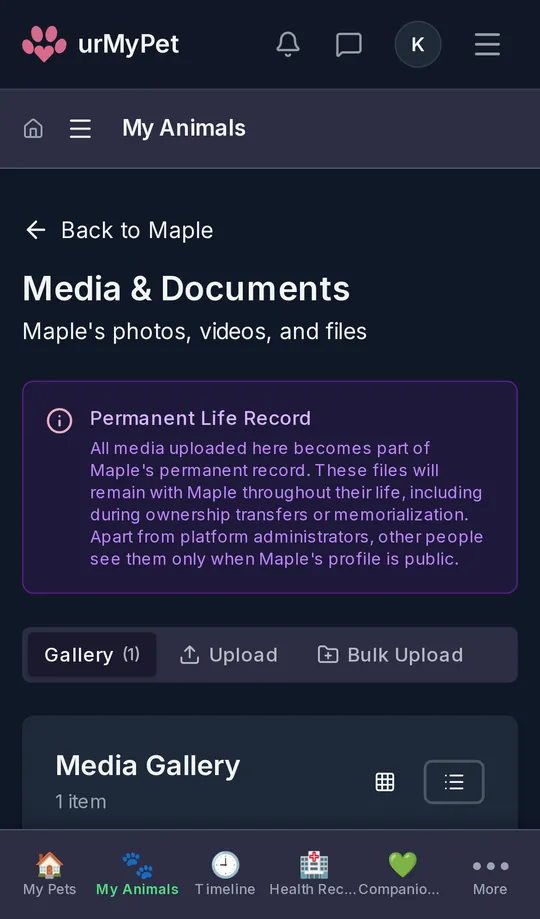
Photos & documents
Photos, videos and files that become part of your pet’s permanent record. The first time you upload, you confirm how they’re kept.
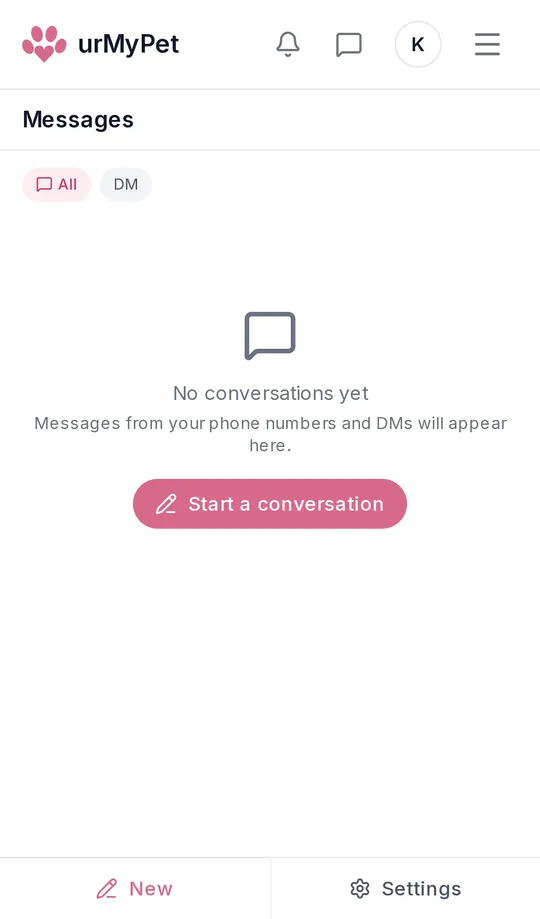
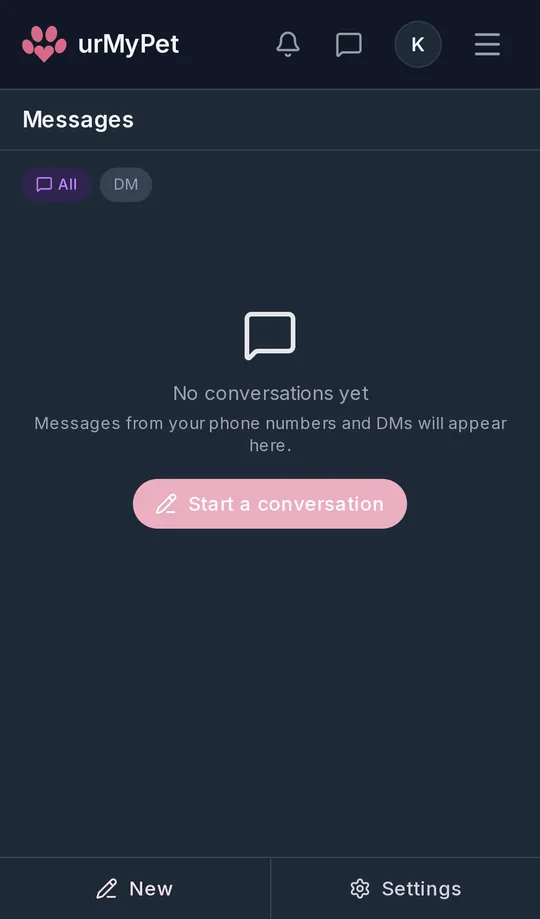
Messages
Your direct messages in one inbox. Start a conversation from the button.
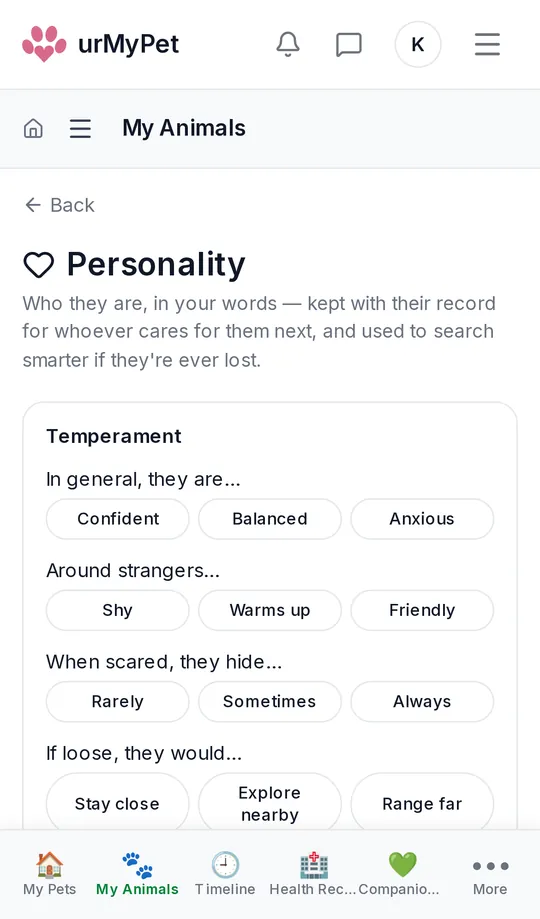
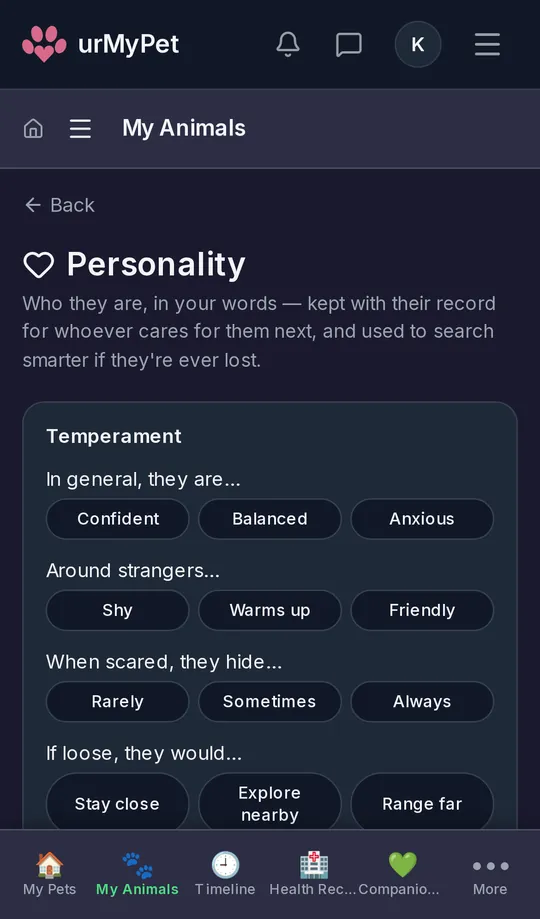
Personality
Who they are, in your words: temperament, how they react to strangers, what they do if they get loose. It helps whoever cares for them next, and helps a search if they’re lost.
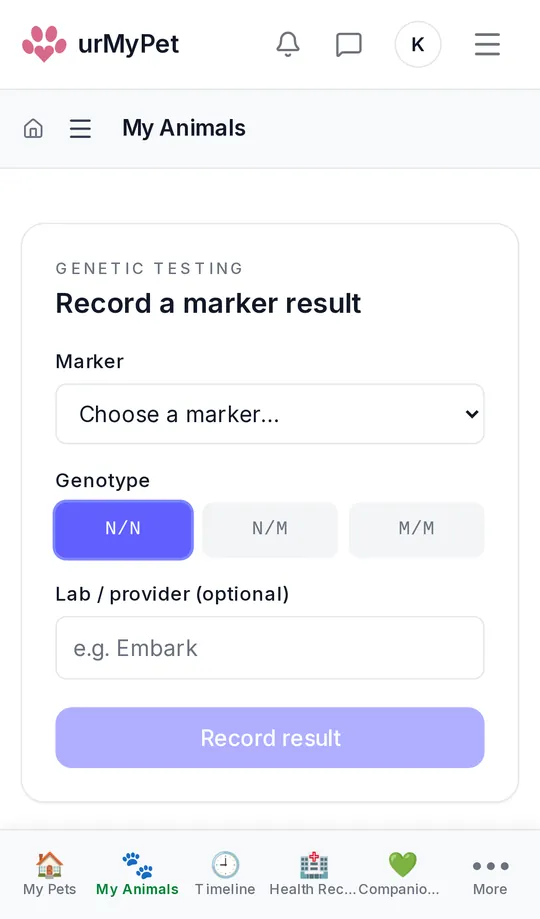
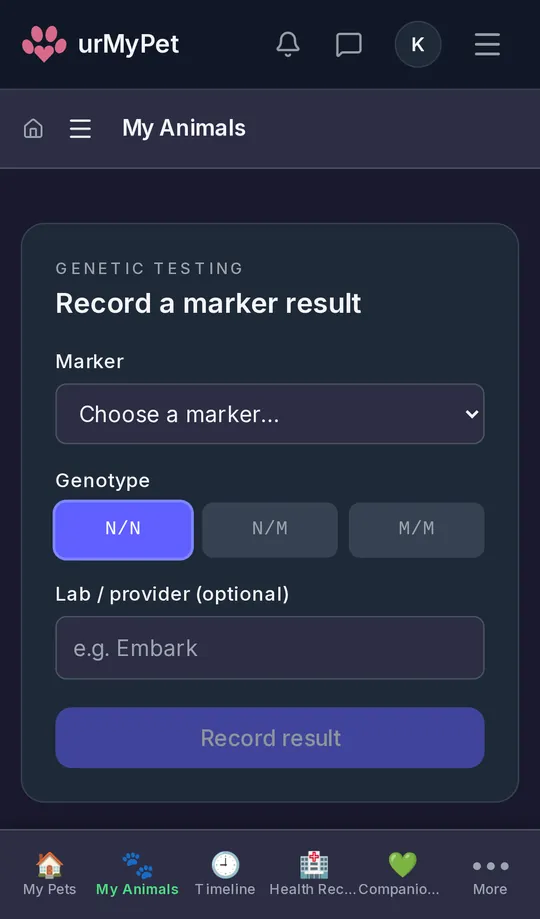
Genetics
Record the results of a DNA test marker by marker, and keep them with the rest of your pet’s record.
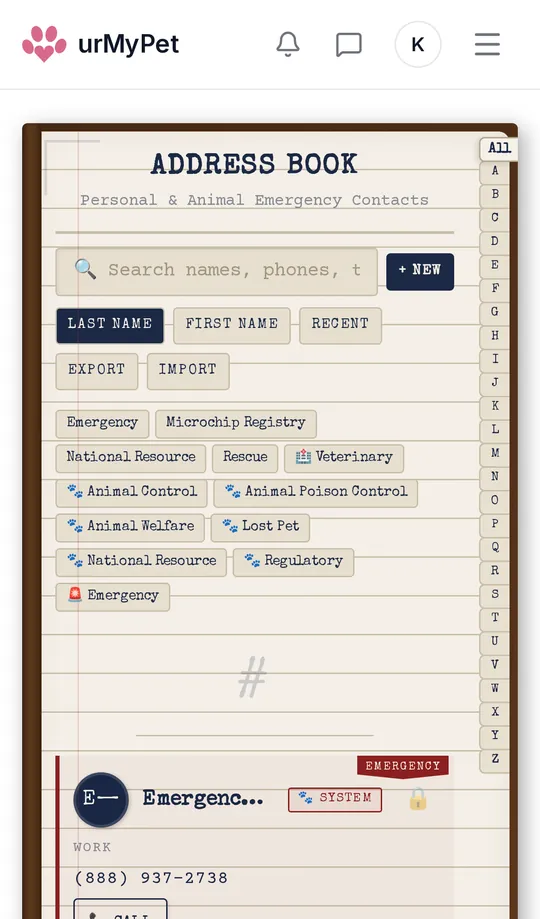
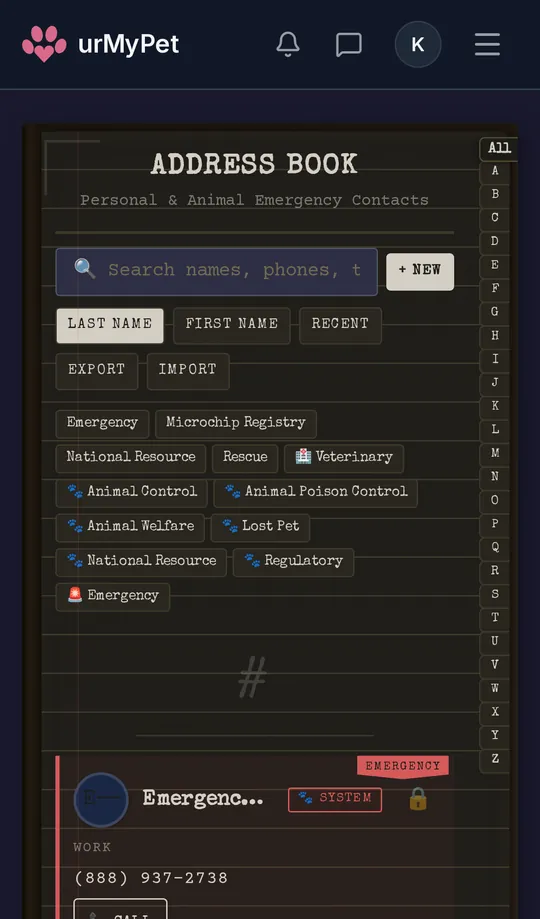
Address book
Your pet contacts in one place, sorted into categories such as emergency, microchip registry, veterinary and animal poison control.
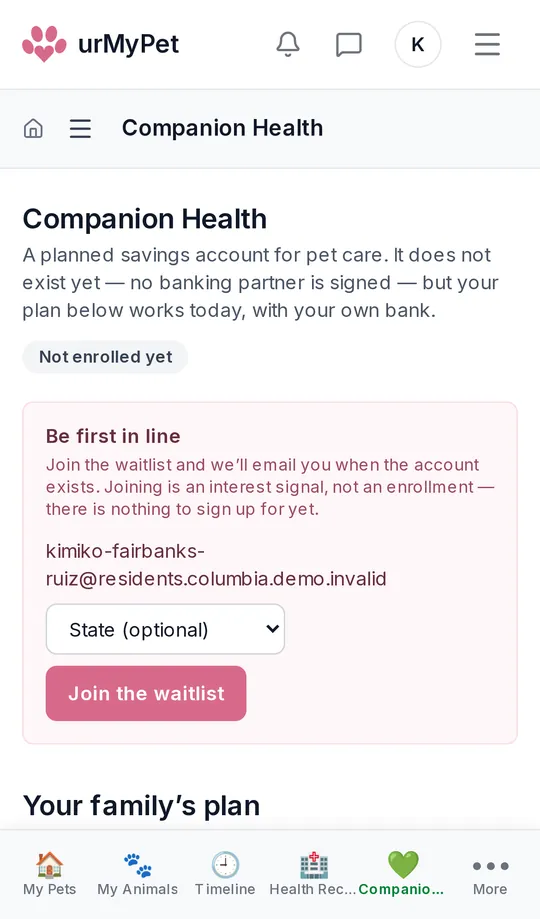
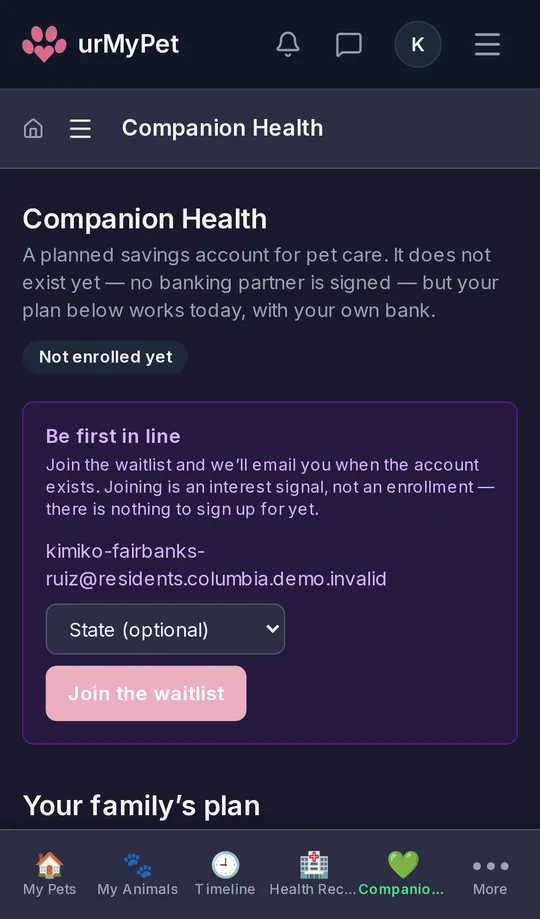
Companion Health
A planned savings account for pet care. It isn’t open yet, but you can plan a care budget today and join the waitlist.
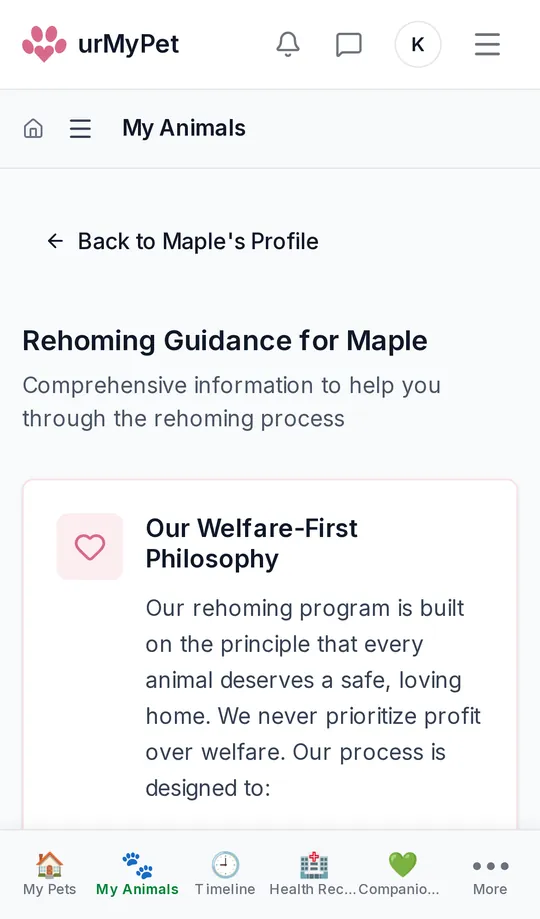
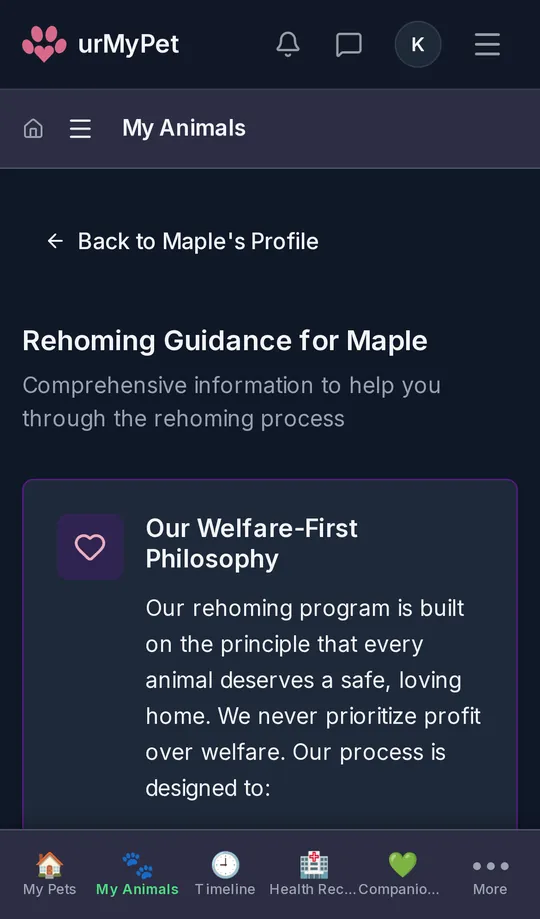
Rehoming
If you ever need to find your pet a new home, step-by-step guidance that puts their welfare first.
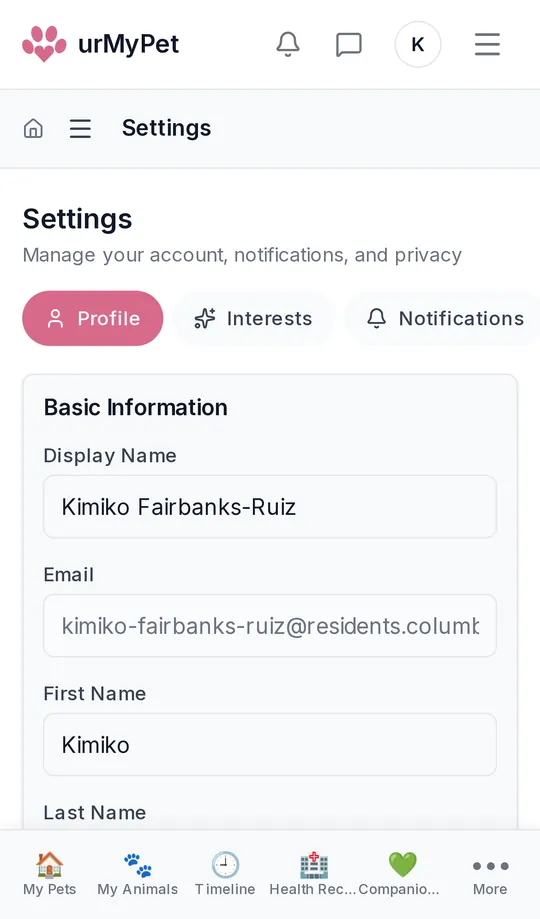
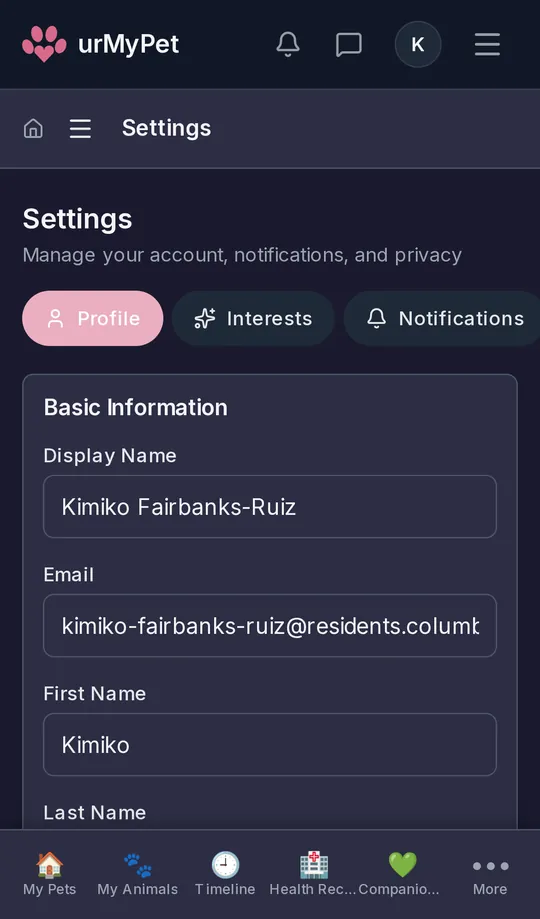
Settings
Your profile, the notifications you get, and your privacy choices.